

How to set up an AI Chief of Staff
Set up an AI chief of staff in a week: a context file, connected calendar, notes and email, and clear rules. 86% of operators we surveyed use AI daily.

Ask AI
 Share
An AI chief of staff is assistant software you set up around your own work: a context file it reads first, connections to your calendar, meeting notes and email, saved instructions for recurring jobs, and written rules for what it may do alone. Most Chiefs of Staff can get a useful first version running in a week, without code.
- 86% of the 1,200+ senior leaders in the Chief of Staff Network's AI Readiness Diagnostic, drawn from Chiefs of Staff and senior operators, use AI every day, but only 12.5% connect it to their other tools.
- Set it up in this order: company approval and data rules, then a context file, then connections, then one recurring job at a time.
- Alex Craig's build cut his morning catch-up from about 30 minutes to about 5, and his 1:1 prep from about 15 minutes to about 2.
- Security, compliance and ethics concerns were the most-cited barrier to AI adoption in the Chief of Staff Network's Chief of AI Report (2025), at about 41% of responses. Approval comes before any connection.
- Anything sent in your principal's name, anything about a person, and every decision stays with you.
It's 7:40 on a Monday. You have nine meetings, a board pre-read due Thursday, and a principal who will ask in the elevator where the pricing decision landed. Most Chiefs of Staff already open an AI assistant several times a day for moments like this; very few have set one up to do the catching up before they arrive.
In the Chief of Staff Network's AI Readiness Diagnostic, 86% of the 1,200+ senior leaders surveyed use AI tools daily and 90% had drafted internal communications with AI in the past month. Only 12.5% connect AI to their other tools, fewer score as AI-native (7.3%), and 5.2% have agents running parts of their workflow. The strategy side is in our guide to AI and the Chief of Staff, and the map of the whole role is in our Chief of Staff handbook.
What is an AI chief of staff, and how do you build one in a week?
An AI chief of staff is an assistant you've given three things: your context, access to the places your work lives, and standing instructions for jobs you repeat. Build it in that order, after company approval, adding one connection and one recurring job at a time. The judgment calls stay with you.
Across the four core responsibilities in what a Chief of Staff does, it drafts the first version of a decision memo, assembles pre-reads and action lists from last week's notes, turns your notes into the update your principal sends, and keeps each workstream's status current. Scheduling and logistics are the safest place to start, because mistakes there are cheap to fix.
Alex Craig, Chief of Staff at PortSwigger, wrote up his own build on our blog and talked it through in his podcast episode on the incognito test. Rebuilding the picture each morning went from about 30 minutes to about 5 minutes of reading, prep for a 1:1 from about 15 minutes to about 2, and board prep now starts with a draft in minutes.
What one Chief of Staff got back after building his setup
Alex Craig, Chief of Staff at PortSwigger, on two daily jobs before and after his build.

He also describes a few hours a week of tinkering for the first two months, and when you're out, the briefs stop unless someone else can run them. Your principal will notice you know more, sooner, and start expecting it. Here is the first week as a checklist, with a lane for the week IT hasn't answered yet.
Template: Week-one AI setup plan
Week one: my AI setup
Day 1
- ☐ Send the request to IT (approved assistant, plan, connections, data line)
- ☐ Write my baseline: morning catch-up, 1:1 prep, commitments chased, decision wait times
Day 2
- ☐ Write the context file (about 30 minutes, one page)
- ☐ Ask [principal]: "Is this the right order for the quarter?"
- ☐ If [principal] has an EA: agree who reads the calendar and inbox
Day 3
- ☐ Once approved: connect calendar (read only)
- ☐ No approval yet: run tomorrow's brief by pasting the calendar in by hand
- ☐ Paste in my rules; set sends to need my approval
Day 4
- ☐ Run the daily brief; note every correction
- ☐ Run the meeting prep pack for my hardest meeting tomorrow
Day 5
- ☐ Tell my regular meetings how notes will be taken, if I add a notetaker
- ☐ Fold this week's corrections into the instructions
- ☐ Decide the next connection for week two
Every Friday after
- ☐ Update the context file (20 minutes)
- ☐ Add at most one new recurring job
# Week one: my AI setup

## Day 1
- [ ] Send the request to IT (approved assistant, plan, connections, data line)
- [ ] Write my baseline: morning catch-up, 1:1 prep, commitments chased, decision wait times

## Day 2
- [ ] Write the context file (about 30 minutes, one page)
- [ ] Ask [principal]: "Is this the right order for the quarter?"
- [ ] If [principal] has an EA: agree who reads the calendar and inbox

## Day 3
- [ ] Once approved: connect calendar (read only)
- [ ] No approval yet: run tomorrow's brief by pasting the calendar in by hand
- [ ] Paste in my rules; set sends to need my approval

## Day 4
- [ ] Run the daily brief; note every correction
- [ ] Run the meeting prep pack for my hardest meeting tomorrow

## Day 5
- [ ] Tell my regular meetings how notes will be taken, if I add a notetaker
- [ ] Fold this week's corrections into the instructions
- [ ] Decide the next connection for week two

## Every Friday after
- [ ] Update the context file (20 minutes)
- [ ] Add at most one new recurring job
What do you need before you connect anything?
You need three answers in writing before you connect a single account: which assistant your company has approved, on which plan, and what data may go into it. If your company has no answer yet, getting one is your first deliverable, and it's a visible one.
Ask IT or security which AI tools are approved for company data, and whether that approval covers connecting email, calendar and documents or only chatting. In Claude's Team and Enterprise plans, an owner enables the Google Workspace connectors and decides whether sending, sharing or deleting may run without asking, and a Google Workspace admin may also need to allow Claude as a trusted app [CHECK SOURCE: support.claude.com/en/articles/10166901].
ChatGPT's business plans work the same way: an admin decides which apps may connect [CHECK SOURCE: help.openai.com]. A personal subscription on your own card sits outside all of those controls, and connecting your work email to one is the risk the review exists to prevent.
Then write down what's off limits. Most companies draw the line around customer data, people and compensation data, legal matters, and anything under a board confidentiality obligation. In the Chief of Staff Network's Chief of AI Report, security, compliance and ethics concerns were the most-cited barrier to AI adoption, at about 41% of responses. For the company-wide policy, use the template in our AI guide; for the legal side, see AI and the Law.
Approval often takes weeks. Until it comes, paste tomorrow's calendar and your own notes into the approved assistant, with nothing sensitive in them, so you learn what a good brief looks like. If the answer is no, ask what would change it, and put the review date in your weekly update so the request doesn't quietly die.
Template: AI setup request to IT
Subject: Request: connecting [approved assistant] to my work accounts
Hi [name],
I'd like to set up [approved assistant, plan] to help with briefings, meeting follow-ups and status tracking for [principal].
What I'd connect, in this order:
1. Calendar (read only)
2. Meeting notes from [notetaker], for meetings where everyone has been told
3. Email (read and draft; nothing sends without my approval)
4. Shared documents in [folder or drive]
What I won't put in: customer data, people and compensation data, legal matters, board-confidential material.
Questions for you:
- Is this assistant and plan approved for company data?
- Does approval cover these connections, or only chat?
- Are there settings you want on (no training on our data, admin approval for send actions, retention limits)?
- Anything else I should keep out?
Happy to walk you through it. I'd like to start on [date].
Thanks,
[name]
Send the request this week. While you wait, write the context file, which needs no access at all.
How do you write the context file?
A context file is a one-page document your assistant reads before every serious task: your principal's priorities in order, what's off the list, who owns what, the decisions already made and why, the words the company uses, and how your principal likes information. It's the part of the system no product can supply, because only you hold it.
Write the first version in about 30 minutes. The excerpt below shows the shape; the full template, with the decision log and commitments list that sit beside it, is in our context management guide.
Template: Context file (excerpt)
Context file: [Principal name, title]
Last updated: [date] · Owner: [Chief of Staff]
This quarter's priorities (in order)
- [Priority]: why it matters, what "done" looks like, owner
- [Priority]
- [Priority]
Off the list this quarter
- [Item]: why it was deprioritized, who agreed
Who owns what
| Area | Owner | Notes |
|---|---|---|
| [Area] | [Name, title] | [Current focus, how they like to work] |
Decisions that shape everything else
| Date | Decision | Why | Revisit when |
|---|---|---|---|
| [Date] | [Decision] | [Reasoning] | [Trigger] |
How [principal] wants information
- Format, tone, and what never to do
Rules for AI working with this file
- Flag anything that conflicts with the priorities above.
- Never state a number, name or date that isn't in the source material. Mark gaps as [CHECK].
- Anything about a person is a draft for me to verify, never a fact.
# Context file: [Principal name, title]
Last updated: [date] · Owner: [Chief of Staff]

## This quarter's priorities (in order)
1. [Priority]: why it matters, what "done" looks like, owner
2. [Priority]
3. [Priority]

## Off the list this quarter
- [Item]: why it was deprioritized, who agreed

## Who owns what
| Area | Owner | Notes |
| --- | --- | --- |
| [Area] | [Name, title] | [Current focus, how they like to work] |

## Decisions that shape everything else
| Date | Decision | Why | Revisit when |
| --- | --- | --- | --- |
| [Date] | [Decision] | [Reasoning] | [Trigger] |

## How [principal] wants information
- Format, tone, and what never to do

## Rules for AI working with this file
- Flag anything that conflicts with the priorities above.
- Never state a number, name or date that isn't in the source material. Mark gaps as [CHECK].
- Anything about a person is a draft for me to verify, never a fact.
Example: Context file excerpt for a Series B CEO (illustration)
Context file: CEO, Series B fintech, 120 people
Last updated: Nov 3 · Owner: Chief of Staff
This quarter's priorities (in order)
- Hit the Q4 revenue plan. Done means plan met in the January board pre-read. Owner: CRO.
- Move the top 30 customers to the new platform before the old one switches off. Owner: VP Customer Success.
- Hire a CFO. Done means a signed offer. Owner: CEO.
Off the list this quarter
- Small-business product line: deferred to Q2, agreed by the CEO and the CRO
Who owns what
| Area | Owner | Notes |
|---|---|---|
| Revenue plan | CRO | Forecast call every Monday |
| Platform migration | VP Customer Success | Wants issues raised in writing |
Decisions that shape everything else
| Date | Decision | Why | Revisit when |
|---|---|---|---|
| Oct 2 | Old platform switches off March 31 | Running two systems ties up the support team | A top-10 customer can't move in time |
How the CEO wants information
- Decision first, one page, numbers in a table
- Never an "FYI" without an ask
Rules for AI working with this file
- Never state a number, name or date that isn't in the source material. Mark gaps as [CHECK].
# Context file: CEO, Series B fintech, 120 people
Last updated: Nov 3 · Owner: Chief of Staff

## This quarter's priorities (in order)
1. Hit the Q4 revenue plan. Done means plan met in the January board pre-read. Owner: CRO.
2. Move the top 30 customers to the new platform before the old one switches off. Owner: VP Customer Success.
3. Hire a CFO. Done means a signed offer. Owner: CEO.

## Off the list this quarter
- Small-business product line: deferred to Q2, agreed by the CEO and the CRO

## Who owns what
| Area | Owner | Notes |
| --- | --- | --- |
| Revenue plan | CRO | Forecast call every Monday |
| Platform migration | VP Customer Success | Wants issues raised in writing |

## Decisions that shape everything else
| Date | Decision | Why | Revisit when |
| --- | --- | --- | --- |
| Oct 2 | Old platform switches off March 31 | Running two systems ties up the support team | A top-10 customer can't move in time |

## How the CEO wants information
- Decision first, one page, numbers in a table
- Never an "FYI" without an ask

## Rules for AI working with this file
- Never state a number, name or date that isn't in the source material. Mark gaps as [CHECK].
In Claude, put it in a project, as instructions plus files that load in every chat inside it, or in a folder the assistant works from directly. Alex runs his whole system from one folder of plain text files that holds his knowledge base, decisions and corrections. In ChatGPT, a project does the same job [CHECK SOURCE: help.openai.com].
These systems usually fail at upkeep. Alex's assistant kept preparing briefing notes on someone who had left the company weeks earlier, because nobody told it. Put a 20-minute update on your calendar every Friday, and when the first version is done, ask your principal: "Is this the right order for the quarter?"
Update the context file the same day a priority or an owner changes, and review it every Friday.
How do you connect your calendar, meeting notes and email?
Connect in order of risk: calendar first, then meeting notes, then email, then shared documents. Each connection gives the assistant more to work with and more ways to embarrass you, so add one, use it for a week, and then add the next.
A connector, or an MCP (Model Context Protocol) connection, lets the assistant read from, and sometimes act in, another system using your login and your permissions, so it sees what you can see. In Claude, you turn connectors on from the chat window once an admin has enabled them, and by default Claude asks before it sends, shares or deletes anything [CHECK SOURCE: support.claude.com/en/articles/10166901]. ChatGPT calls its connectors apps, and on business plans an admin turns them on [CHECK SOURCE: help.openai.com].
What each connection gives you, and what to watch
| Connection | What it gives the assistant | Main risk | Who approves |
|---|---|---|---|
| Calendar (read) | Who you're meeting, when, and the agenda | Low; private event titles | You, within company policy |
| Meeting notes | What was said and agreed in each meeting | Recording without consent; sensitive meetings captured | IT, legal for recording rules, and the people in the room |
| Email (read and draft) | Threads, asks and commitments | Sends in your name; people and customer data | IT; sends always need your approval |
| Shared documents | Plans, decks, memos and their history | Over-sharing restricted files | Document owners and IT |
| Chat (Slack, Teams) | Discussion and decisions between meetings | Private channels; casual remarks treated as decisions | IT and channel owners |
If your principal has an executive assistant, talk to them before any assistant touches the principal's calendar or shared inbox. They own that ground, and a brief that contradicts their scheduling costs you more than it saves.
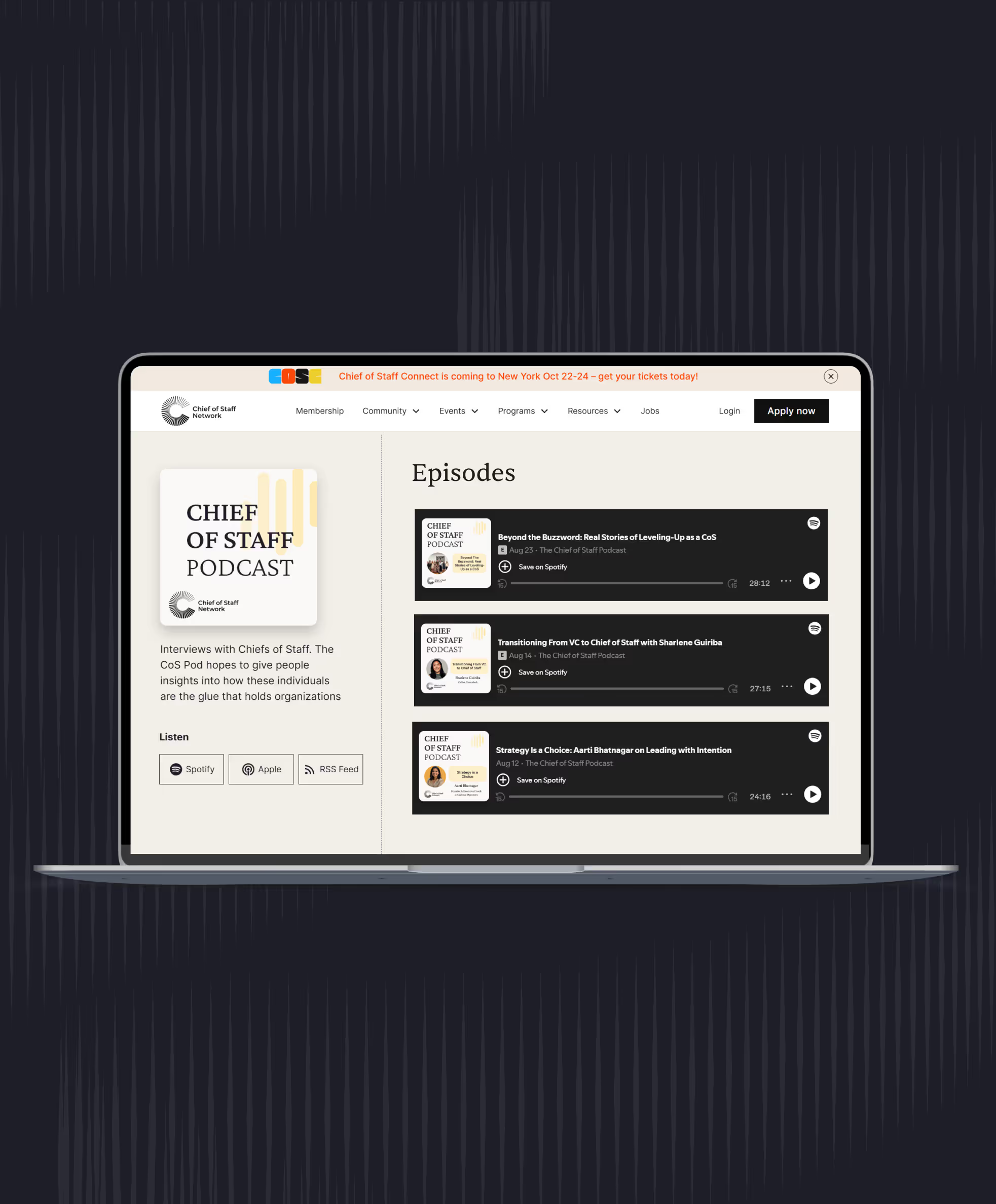
Meeting notes need the most care, because recording changes the room. Aria Finger, Chief of Staff to Reid Hoffman, told our podcast she records all of her meetings with a notetaker and asks an assistant about anything she didn't catch. Some notetakers run quietly on your laptop, which is why you have to tell people; our meetings guide has the consent rules and the list of meetings never to record.
Email comes third because it's where mistakes leave the building. Let the assistant pull asks and commitments out of threads and draft replies for you to edit, and keep it on read and draft for at least the first month. Once your calendar is connected, check a one-paragraph brief on tomorrow's meetings against what you know, and fix the context file before you connect anything else.
Which recurring jobs should you build first?
Build the recurring jobs you already do by hand, one at a time, starting with a daily brief and a meeting prep pack. Each one should save time you can name, every week, before you add the next.
A recurring job is a saved set of instructions the assistant runs on demand or on a schedule. In Claude these are skills, folders of instructions it loads when a task calls for them [CHECK SOURCE: support.claude.com/en/articles/12512176]; in ChatGPT, a custom GPT or a saved prompt in a project plays the same part [CHECK SOURCE: help.openai.com]. Both can run a saved prompt at a set time, and either may need a paid plan or an admin setting [CHECK SOURCE: each vendor's help page on scheduled tasks].
Alex's schedule shows where a mature setup ends up: a 6:30 weekday brief covering yesterday's decisions, urgent messages, each meeting and promises from the past 72 hours; a 1pm check on whether the morning went to plan; a Friday scan for workarounds he keeps repeating by hand; and a loop every 30 minutes that picks up new transcripts and tasks. He added one job a week over about a month.
[SCOTT: one line on your own setup: what you connected first, and the one recurring job you'd keep if you had to drop the rest]
Start with the daily brief. It runs five times a week, so you get five rounds of corrections before Friday, you can grade it in a minute, and when it's wrong only you see it. Run these two prompts by hand for a week before you schedule anything.
Prompt: Daily brief for a Chief of Staff
You are helping me, a Chief of Staff to [principal, title], start the day. Use only my calendar, meeting notes from the last 3 working days, my email from the last 24 hours and my context file. Do not guess.

Write a brief of no more than 250 words:
1. Today's meetings, in order. For each: why it matters to this quarter's priorities, what was decided last time, and one question I should ask.
2. Decisions waiting on [principal], with how long each has waited.
3. Commitments made to or by me in the last 72 hours that are due or at risk, with the source.
4. Anything urgent in email that needs me before noon.

Flag anything about a named person as "check before using". If a source is missing, say which one.
The meeting prep pack is the second job, for the meetings where a decision is at stake.
Prompt: Meeting prep pack
Prepare me for this meeting: [title, date, attendees].

Use my context file, the last two sets of notes from meetings with these attendees, and any documents linked in the invite.

Give me:
- The purpose of the meeting in one sentence, and the decision or output we need by the end.
- What each attendee is likely to care about, based only on what they've said in our notes.
- Open commitments between us and them, with dates.
- Three questions I should ask, and the one risk I should raise.
- A one-line summary I can send [principal] afterwards, with blanks for the outcome.

Keep it under 200 words. Mark anything you inferred rather than read.
A week of tuning, step by step
The first week usually goes something like this labeled illustration. Each day's error is a common one, and each correction becomes a line in the instructions.
- Monday. The brief gives every one of eleven meetings a full paragraph and runs past 400 words. You skim it and miss the one that mattered. New line: "Only meetings where a decision or commitment is at stake get a paragraph. Everything else gets one line."
- Tuesday. It lists the pricing decision as still open. Your principal settled it by text at 9pm, which no connector saw. You add the decision to the context file, plus a line: "If the context file records a decision more recently than the notes, the file wins."
- Wednesday. It credits an action to the wrong VP, the same mix-up Alex found in his own summaries. New line: "Name an owner only when the notes name one. Otherwise write 'owner unclear'."
- Thursday. It buries a late-night email from the board chair under routine threads. New line: "List messages from [names] first, whatever time they arrived."
- Friday. You fold the four lines into the saved instructions and run Monday's inputs again to check the fixes hold.
Those four rules came from your principal's habits and your company's gaps, which is why a borrowed prompt rarely works as well as one you've corrected for a week.
Where people go wrong, and how to tell
Most people schedule too early. My test: if you changed more than a line in any of the last three briefs, keep running it by hand, because a brief you rewrite every morning has taught you to skim. Work you do less than weekly stays a saved prompt you run when needed.
Every correction adds a line, and every line adds output. If you've stopped reading past the first section two days running, cut the brief back to the items you acted on that week. A Chief of Staff to a CTO wants incidents, roadmap slips and hiring; for a head of sales it's deals, forecast changes and escalations. In a remote company, ask for the chat connection earlier, or the brief will miss most of what was decided.
Alex is honest about a cost: once the routine work disappeared, his days filled with back-to-back demanding work and less recovery time, and he doesn't have a fix yet. Protect a block each day that the system doesn't fill. Your principal may also start forwarding your briefs, so an error in one now travels.
How do you build it in Claude or ChatGPT?
In Claude, you build it from a project, connectors and skills. In ChatGPT, you build it from a project, apps (ChatGPT's name for connectors) and a custom GPT or scheduled task. Use whichever your company licenses, and keep the order: context and rules first, calendar before email, a week by hand before you automate.
Claude
- Create a project for your principal. Add the context file and your rules as project instructions and files, so every chat inside it starts from the same page.
- Ask your admin to enable the Google Workspace or Microsoft 365 connectors, then turn on calendar first, notes second and email last.
- Run the daily brief prompt by hand for a week inside the project.
- Turn it into a skill once it runs cleanly; skills need code execution switched on in settings [CHECK SOURCE: support.claude.com/en/articles/12512176].
- Schedule it, and read every brief for the first two weeks before you act on it.
ChatGPT
- Create a project for your principal. Add the context file and your rules as project instructions and files.
- Ask your admin to turn on the apps for your calendar, email and documents (on business plans, apps are switched on by an admin), then connect calendar first, notes second and email last [CHECK SOURCE: help.openai.com].
- Run the daily brief prompt by hand for a week inside the project.
- Save the working version as a custom GPT, or keep it as a saved prompt in the project.
- Set it up as a scheduled task, and read every brief for the first two weeks before you act on it [CHECK SOURCE: help.openai.com].
Other assistants work in a similar way. Use the one you prefer or your company allows.
On Microsoft 365 Copilot or another assistant, the same steps apply: a place for standing instructions, approved connections, one tested prompt, then a schedule. For projects, plans and a ready chief of staff skill in Claude, see our guide to Claude for Chiefs of Staff.
How do you set rules for what it may do alone?
Write the assistant's rules the way you'd write decision rights for a new hire: what it does alone, what it prepares for you to approve, and what it never touches. Most assistants enforce some of this through settings; the rest is in your instructions and your habits.
Reading, summarizing, finding and drafting can run alone. Sending, scheduling, sharing or assigning work to someone needs your approval every time. Messages in your principal's name to the board or investors, anything about a person's performance, pay or employment, and legal matters stay out entirely.
The failures look exactly like the successes. Alex's assistant assigned an action to his boss, with a due date, without flagging it to him first. It credited one colleague's update to another in a meeting summary, and presented a year-old product release as this week's news. He caught each in review, logs every failure the same day, and checks every output about people against the source, because people remember that the Chief of Staff got it wrong.
Template: Rules for my AI assistant
Rules for my assistant ([your name], Chief of Staff to [principal])
You may do these on your own
- Read my calendar, meeting notes, email and the shared folders I've connected
- Summarize, find, compare and draft
- Suggest tasks and follow-ups, labeled with their source
Ask me first, every time
- Sending, replying, forwarding or scheduling anything
- Sharing, moving or deleting any file
- Assigning a task or a date to anyone, including me
Never
- Write to the board, investors or press in [principal]'s name
- Draft anything about a person's performance, pay or employment
- Use customer, people or legal data, even if you can see it
- Fill a gap with a guess: say what's missing
Always
- Mark anything about a named person "check before using"
- Give the source (meeting, thread, document) for every commitment
- Use the context file; tell me when it looks out of date
# Rules for my assistant ([your name], Chief of Staff to [principal])

## You may do these on your own
- Read my calendar, meeting notes, email and the shared folders I've connected
- Summarize, find, compare and draft
- Suggest tasks and follow-ups, labeled with their source

## Ask me first, every time
- Sending, replying, forwarding or scheduling anything
- Sharing, moving or deleting any file
- Assigning a task or a date to anyone, including me

## Never
- Write to the board, investors or press in [principal]'s name
- Draft anything about a person's performance, pay or employment
- Use customer, people or legal data, even if you can see it
- Fill a gap with a guess: say what's missing

## Always
- Mark anything about a named person "check before using"
- Give the source (meeting, thread, document) for every commitment
- Use the context file; tell me when it looks out of date
How autonomy grows, and where it stops
Two questions set every rule: can the action be undone, and who sees it? A draft or a tag on a task can run alone from day one. Something that reaches another person can earn independence slowly. Anything external, anything about a person, and anything in your principal's name never does, however good the track record.
Take internal scheduling replies, the lowest-stakes message most Chiefs of Staff send. Keep them as drafts for a month and count how many you change. My rule of thumb: if fewer than one in twenty needed an edit, let it send confirmations to colleagues inside the company, and write the new permission into the rules file with the date.
The judgment call people miss is access. A connector sees what you can see, including the HR folder someone shared with you once and your principal's inbox if you have delegate access. Name those places in the "never" list, and decide with your principal which parts of their inbox the assistant may touch.
Where do personal agents fit?
Personal agents are assistants that run on their own computer in the cloud, sign into your accounts and act for you over hours or days. For most Chiefs of Staff today they belong with personal errands, and company data stays out until your IT team has reviewed one, including the enterprise versions some now sell.
Several launched this autumn, including Meta's Muse, xAI's Grok Bot and the invite-only Instinct, and their terms and data handling vary widely [CHECK SOURCE: vendor pages, checked Nov 6, 2026]. Before you use any of them, run the same checks:
Personal agents: what to check before using one for work
| Question | Why it matters for a Chief of Staff |
|---|---|
| Does it log in as you, with stored credentials? | It can act anywhere you can, including in your principal's shared inbox or calendar |
| Can you separate read and write access, by service? | You want reading on and sending off until you trust it |
| Does it ask before sending, booking or buying? | Testers have reported sends they didn't approve |
| Is your data used for training, and can you switch that off? | Company information may leave the company |
| What do the terms say about licenses, retention and deletion? | Some terms grant broad rights over what you connect |
| Is it on your company's approved list? | If not, keep it to personal errands |
One agent forwarding the wrong thread from your principal's inbox can cost you the role. I wouldn't connect a work account to any of these until IT has reviewed it, however good the demo looks. If you already use one, check which accounts it's signed into and remove any work account your company hasn't approved.
How do you know it's working, and what does it give back?
It's working when you can point to hours returned, decisions made sooner and fewer dropped commitments, measured against a baseline you wrote down before you started. Measure for a month, then decide what to keep.
A one-month scorecard for your setup
| Measure | How to take the baseline | What counts as a result |
|---|---|---|
| Morning catch-up | Time it on three normal days | Minutes saved, minus the minutes you spend checking the brief |
| 1:1 prep | Time your prep for the next three 1:1s | Prep time down, and no question you wished you'd asked |
| Commitments chased | Count last week's commitments you had to chase or found late | Fewer found late, with the source of each one recorded |
| Decision wait | List open decisions for your principal and how many days each has waited | Shorter waits, because each memo starts sooner |
Alex's results came after weeks of tuning, so don't judge your own setup on week one. The hours count when they move into work only you can do, such as preparing the decisions that matter; if the time saved went to clearing more email, the setup made you faster without making you more useful. Write down each Friday where the saved hours went, and count the checking honestly.
At the end of the month, decide job by job: keep a job that saved time you can name, rewrite one that needed heavy edits, drop one you stopped reading.
AI-first Chiefs of Staff average $189,128 in base pay, against $148,999 for those who describe themselves as AI novices, according to the Chief of Staff Network's 2025 Salary Report (nearly 500 respondents). That's a correlation with self-reported fluency, and the people differ in other ways too, so your own before-and-after numbers are the evidence to bring to your principal. One in four Chief of Staff job postings now mentions AI skills, according to the 2026 Pathways Report (more than 1,800 postings), though asking for them doesn't raise the advertised pay by itself.
Cost comes last because it's the smaller number. Alex estimates his setup runs about $50 a day at full use on a usage-billed enterprise plan, roughly $12,500 a year across 250 working days, and notes that a top-tier individual subscription could cover the same work. He weighs it against the work it does, which he says he'd otherwise hire someone for.
Write down how long your morning catch-up and 1:1 prep take today, so you can show what the setup returns in a month.
Take the baseline this week, and put a 30-minute review in your calendar four weeks from today.
See how other Chiefs of Staff set up their AI tools, and swap prompts and rules with them. Join the Chief of Staff Network for peer groups, events and the Power Skills program.
See membershipIf it works, expect your principal to ask you to roll it out to the leadership team, often around month two. Don't hand over a copy: your context file holds notes about people and your principal's priorities, and each leader needs their own file, connections and rules. Start with one leader whose week looks like yours, and treat it as the first step of a company program, which our AI guide covers.
The next place to apply it is your operating rhythm, where meeting notes and action tracking save the most time across the leadership team.
Keep reading
 AI chief of staff: how AI is changing the role, and what it can't doAI and the CoS
- Claude for Chiefs of Staff: a beginner's guideAI and the CoS
- AI tools for Chiefs of Staff: what to use, buy or buildAI and the CoS
AI and the CoS
Take this guide with you
The full guide as a PDF: every section, template and chart, ready to print or share with your team.
Your PDF is ready.
Download the PDFFree. We may email you new guides; unsubscribe anytime.
Frequently asked questions
- AI Readiness Diagnostic, Chief of Staff Network, 2026, 1,200+ senior leaders drawn from Chiefs of Staff and senior operators: daily AI use (86%), AI-drafted internal communications (90%), AI connected to other tools (12.5%), scored as AI-native (7.3%), agents running parts of workflow (5.2%).
- Chief of AI Report, Chief of Staff Network, 2025: barriers to AI adoption (security, compliance and ethics, about 41% of responses).
- 2025 Salary Report, Chief of Staff Network (n=479): average base pay by self-reported AI maturity.
- 2026 Pathways Report, Chief of Staff Network: 1,819 Chief of Staff job postings (global); share asking for AI skills.
- Alex Craig, "I'm a Chief of Staff. So I built myself one", Chief of Staff Network blog, July 2026, and his episode of our podcast.
- Chief of Staff Network podcast: Aria Finger.
- Vendor pages checked November 6, 2026: Claude help center (connectors, projects, skills, scheduled tasks), OpenAI help center (projects, apps, custom GPTs, scheduled tasks), and announcements for Meta's Muse, xAI's Grok Bot and Instinct. Products change often; check the vendor's current pages before you connect anything.
Learn the job with people who do it
Membership gets you the Power Skills program, member events and a private community of working Chiefs of Staff.
Land your first Chief of Staff role
Launchpad helps you prepare, position yourself and interview for the role.
Starting out in the role?
The Fundamentals email course walks you through scoping the mandate, setting the cadence and earning trust.
Lead AI adoption from the Chief of Staff seat
The Chief of AI Fellowship is for operators turning AI into how the company runs.
Hiring a Chief of Staff?
Post the role on the Chief of Staff job board, or browse open roles.
Get your resume ready for the role
Get feedback on your Chief of Staff resume before you apply.
Let the right roles find you
Join the talent network and hear about Chief of Staff roles first.
The Chief of Staff newsletter
What Chiefs of Staff are reading, hiring for and building.
Get the full report
Every chart and cut from our latest salary research, sent to your inbox.
Using AI with sensitive data?
Learn the legal side of using AI at work.